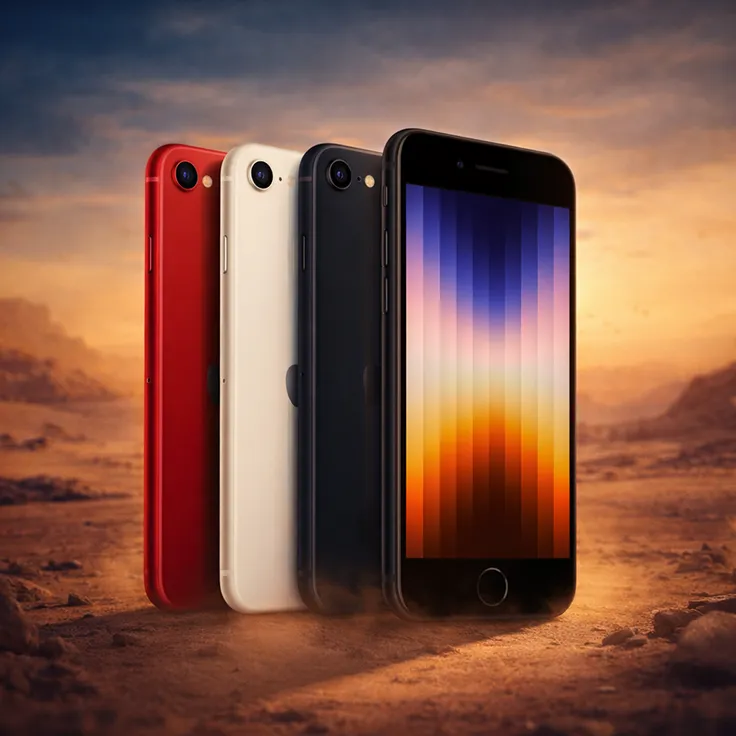
The iPhone SE proves that great things come in small packages. It combines a compact design with powerful performance, making it perfect for users who want speed without a bulky phone. While most people use it for everyday tasks like calling, browsing, and taking photos, there are many useful features that often go unnoticed.
Whether you’ve just bought your device or have been using it for a while, these tips will help you get more out of your iPhone SE.
1. Use Back Tap for Faster Actions
Back Tap is a smart feature that lets you trigger actions just by tapping the back of your phone. You can set it to take screenshots, open apps, or run shortcuts.
How to enable it:
- Go to Settings → Accessibility → Touch → Back Tap
- Choose Double Tap or Triple Tap
- Select the action you want
It’s a simple way to save time and make everyday tasks quicker.
2. Make One-Handed Use Easier with Reachability
Even though the iPhone SE is compact, Reachability makes navigation even more comfortable.
- Swipe down near the bottom of the screen to bring the top half closer
- This helps you access items at the top without stretching your thumb
You can turn it on in Settings → Accessibility → Touch.
3. Get More Out of the Camera
The camera on the iPhone SE is powerful, and a few hidden tricks can make it even better:
- Quick video recording: Hold the shutter button to start recording instantly
- Burst photos: Drag the shutter to capture multiple shots quickly
- Portrait effects: Try different lighting styles for more professional-looking photos
These features help you capture moments more creatively and efficiently.
4. Extend Battery Life When Needed
If your battery is running low, Low Power Mode can help you get more usage out of your device.
- Go to Settings → Battery → Low Power Mode
This reduces background activity and visual effects while keeping your phone responsive.
5. Automate Tasks with Shortcuts
Shortcuts allow you to automate daily activities like sending messages or opening multiple apps at once.
- Go to Settings → Siri & Search → Shortcuts
You can create custom actions that save time and make your phone feel more personalized.
6. Use Haptic Touch for Quick Access
By pressing and holding app icons, you can access quick options without opening the app.
For example:
- Open the camera directly in selfie mode
- Preview messages or emails
- Access app-specific shortcuts
This feature improves speed and convenience.
7. Pin Important Conversations
If you message certain people frequently, you can pin their chats to the top.
- Open Messages
- Swipe right on a conversation and tap Pin
This keeps important chats easily accessible.
8. Read Articles Without Distractions
Safari’s Reader Mode removes ads and clutter from web pages.
- Tap the “aA” icon in the address bar
- Switch to Reader Mode
This makes reading blogs and news much cleaner and more enjoyable.
9. Customize Your Control Center
You can add your favorite tools to the Control Center for quick access.
- Go to Settings → Control Center
- Add features like Screen Recording, Calculator, or Voice Memos
Then simply swipe down to access them instantly.
10. Set Up Emergency Features
Your iPhone SE includes built-in safety tools that can be very important in emergencies.
- Press the side button multiple times to activate Emergency SOS
- Set up your Medical ID in the Health app
These features can help you quickly contact emergency services when needed.
Final Thoughts
The iPhone SE may look simple, but it’s packed with useful features that can improve your daily experience. By exploring these tips, you can make your device faster, smarter, and more convenient to use.
Take a few minutes to try these settings—you might be surprised at how much more your iPhone SE can do.